I decided students should use Go Daddy to buy the domain name and set up a hosting account because it is cheap and they will not have to deal with technical issues like setting up DNS, etc. I am not endorsing GoDaddy, for clients I use Joyent or Media Temple.
Alternatives to GoDaddy
Below are some alternatives to GoDaddy, along with links to tutorials for installing WordPress. While these hosts may be easier to use than GoDaddy, I have never used them and cannot help students and others troubleshoot the set-up process.
HostIcan
One-Click Self-Installation of WordPress with HostICan
Media Temple
1-Click Self-Installation of WordPress with Media Temple
DreamHost
One-Click Self-Installation of WordPress with DreamHost
BlueHost
One-Click Self-Installation of WordPress with Blue Host
Purchasing a Domain Name and a Web Site Hosting Plan:
Before you start you should choose your desired domain name, plus some alternatives if you your first choice is not available. And you should have your credit card and a little patience to deal with Go Daddy’s relentless marketing.
NOTE: Be careful when signing up with Go Daddy.
Be careful when signing up with Go Daddy. They will constantly ask you if you want extra stuff. Just keep saying NO and continue. !!!
NOTE: If you already own a domain name, only purchase the Hosting Plan.
If you already own a domain name, only purchase the Hosting Plan. Or if you are planning on using a paid portfolio service like iCompendium or ArtCat. only purchase the domain name. If you buy both domain name and hosting plan together there is a discount for the purchase of the domain name. My total cost for both was $17.14.
NOTE: Be patient and flexible
There may be variations to the signup process, described below. Be patient and flexible and you will figure it out.
NOTE: Be prepared for 4 username/passwords
By the time you finish with GoDaddy you will have 4 (yes that’s right FOUR!) different logons. Please have your usernames and passwords prepared beforehand and record them in a safe and secure place, in case you forget them.
You will have a username and a password for:
Logging onto Godaddy Account
Logging onto your hosting service (you will need this for FTP’ing files to your site)
Your MySql Database (you will rarely need this, but keep it, just the same)
Logging into WordPress
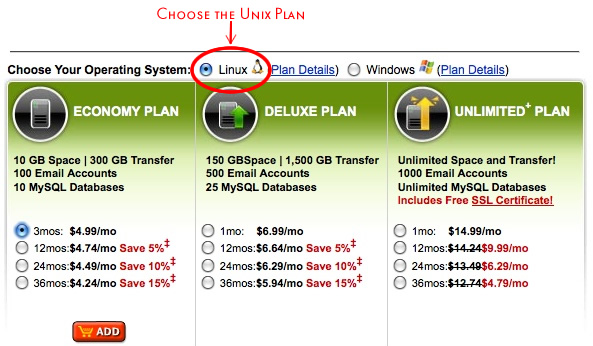
Choose the Economy Unix Plan:
Choose the Unix Plan. Most of the underlying server software for Unix is open source (and we like that). And I won’t be able to help you if you choose the Windows plan, having never used a server on Windows.
Choose your hosting plan. The Economy plan will be fine for your needs. Click “Add”.
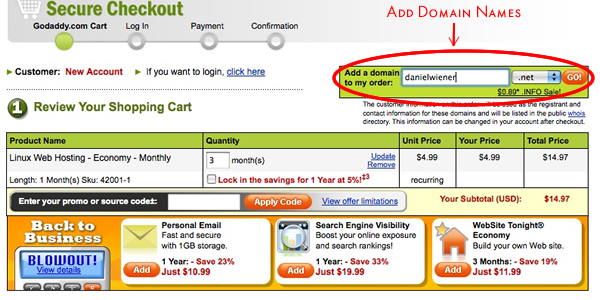
Add Domain Name to your order
The next screen will be the Shopping Cart. Add your desired domain name and click “Go”.
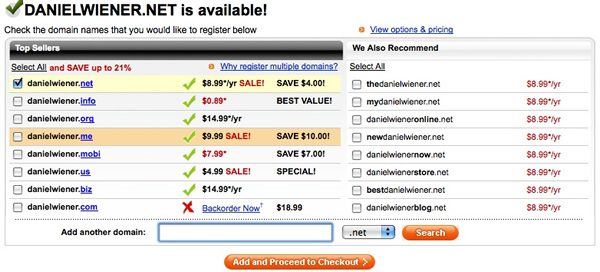
If your domain name is available click “Add and Proceed to Checkout”. If it is not available choose one of their suggestions or try another domain name. Frequently you can add a dash or underscore between your first and last name to find an available domain name or add a descriptive word to your name, e.g. firstlast_art.com.
Just say NO.
The next screen will try to sell you stuff. It will look something like this:
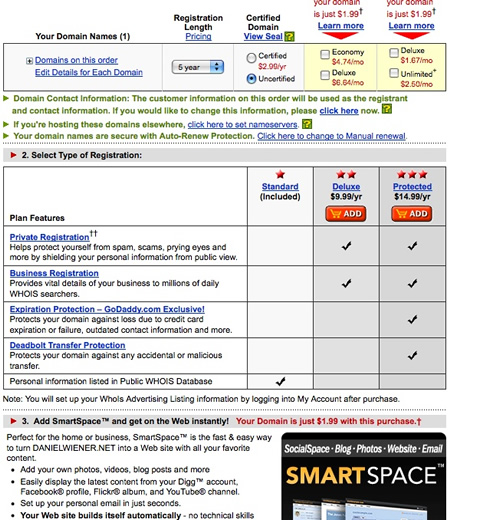
Ignore this screen and click “Continue” towards the bottom of the screen.
Shopping Cart
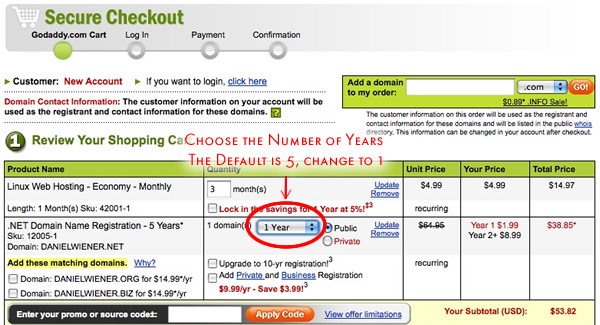
Your shopping cart should look something like this: (be sure to choose the number of years, otherwise Go Daddy will charge you for 5 years.)
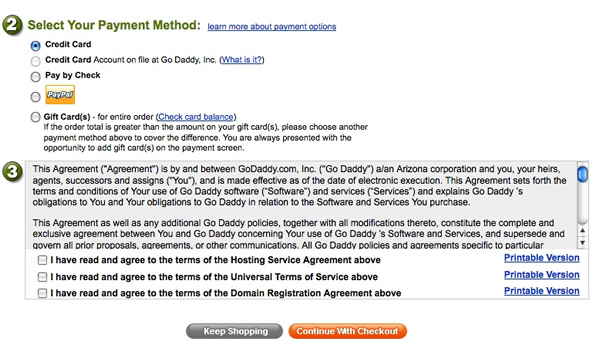
Scroll down this screen to the bottom. Check the form of payment and the 3 terms of service agreements and click “Continue with Checkout”.
Fill in Name and Address, Payment Info and Username and Password.
The next screens are the typical ecommerce forms. Fill in your name and address and credit card info, etc. You will also be asked to create a username and password. These will be used to access your Go Daddy account. Later you will be asked to create another username and password. The second set will be used to access your the files on your website. Please don’t confuse the them.
Save your username and password, someplace secure. Do not forget them.
Skip Special Deals
The next screen will offer you Special Deals and has a tab for “Essential Next Steps”. Please ignore both of these. See below:
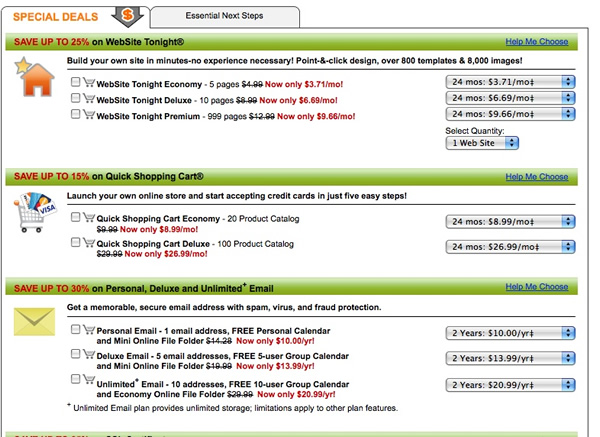
Towards the top of this page you will see text saying “Thank you for your order”. Click on the link “Login to Begin Using Your Products” to continue:

Log in to your Go Daddy account
Fill in username and password on the next screen.

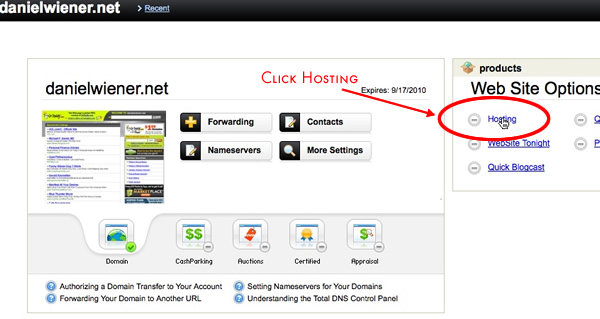
Click the domain name you just purchased.
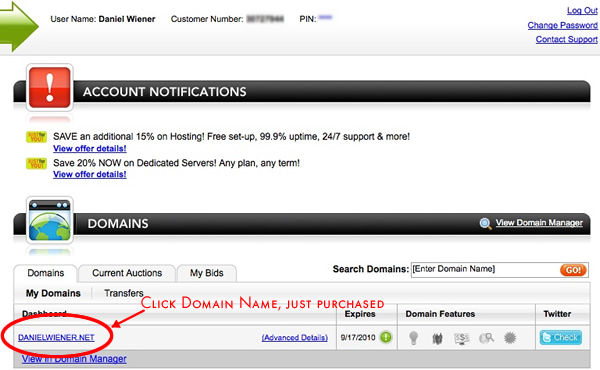
On the next page click “Hosting”
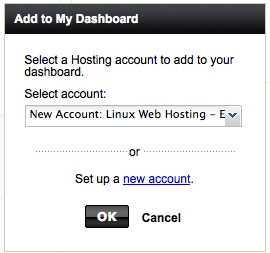
Add Hosting Account
Click “OK” in the dialog box. “Select Account” should show your the Hosting Account you just purchased.
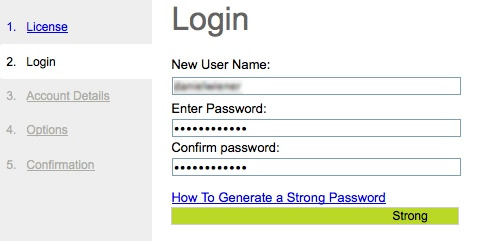
Five Steps to set up Hosting Account
1) License. Check “I have read and agree to the Hosting Service Agreement” and then click “Next”.
2) Login. Create username and password for your Hosting Account. (Don’t confuse it with your Go Daddy login). Follow the instructions for creating a strong password. Please save the username and password. You will need them to log in to save files to your website.Click “Next” in lower right hand corner.
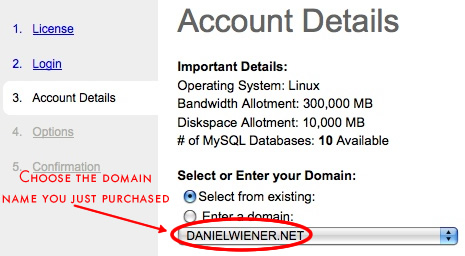
3) Account Details. Summary of account details. Be sure to choose the domain name you just purchased. Click “Next”.
4) Options. Leave as is. PHP.5 should be checked and Google Webmaster tools should be enabled. Click “Next”.
5) Confirmation. A summary of your choices. If they are correct click “Finish”.
You are done.
You should see a congratulations screen, which tells you that you will have to wait 24 hours for your site to be set up. Nothing more to do but wait.
Be sure to check for emails with pertinent information from Go Daddy. Please save them for future use. And please ignore emails with special offers.
You should give more guidence on how to start purchasing your hosting plan and domain name. I figured it out, but godaddy.com is VERY busy and is not a very “friendly” site to navigate through because all the ads.
I know it is not a very friendly site and was as explicit as possible on how to navigate through the ads.
If you have a suggestion on what else that needs to be explained that would be appreciated.
Daniel